Questionnaire guide
How the Stinmnimi app and its questionnaire work, from the first sign-in to submitting the memorial.
The screens in this guide show a sample person, not a real memorial.
Before you start
What is the questionnaire for?
The questionnaire is where you tell the story of a person who has passed away. You answer questions about their life, add photographs if you have them, and submit. The Stinmnimi team uses your answers and photographs to write the memorial biography.
How long does it take?
Most families finish in 45 to 60 minutes. You do not have to do it in one sitting.
Do I have to finish in one go?
No. Your answers save automatically, and you can return at any point within two months. When you come back, you continue from the same place.
Do I have to answer every question?
No. Only three details are required: the person's full name, what young children in the family called them, and the date they passed away. If you do not know the exact date, you can enter an approximate one. Everything else can be left blank if it is private, unknown or does not apply.
Do I need to install anything?
No. The app runs in your web browser, on a phone, a tablet or a computer, at app.stinmnimi.gr.
Starting the memorial
How do I start?
- Go to app.stinmnimi.gr and choose Continue with email or Continue with Google. New accounts are created automatically.
- Choose Create a memorial.
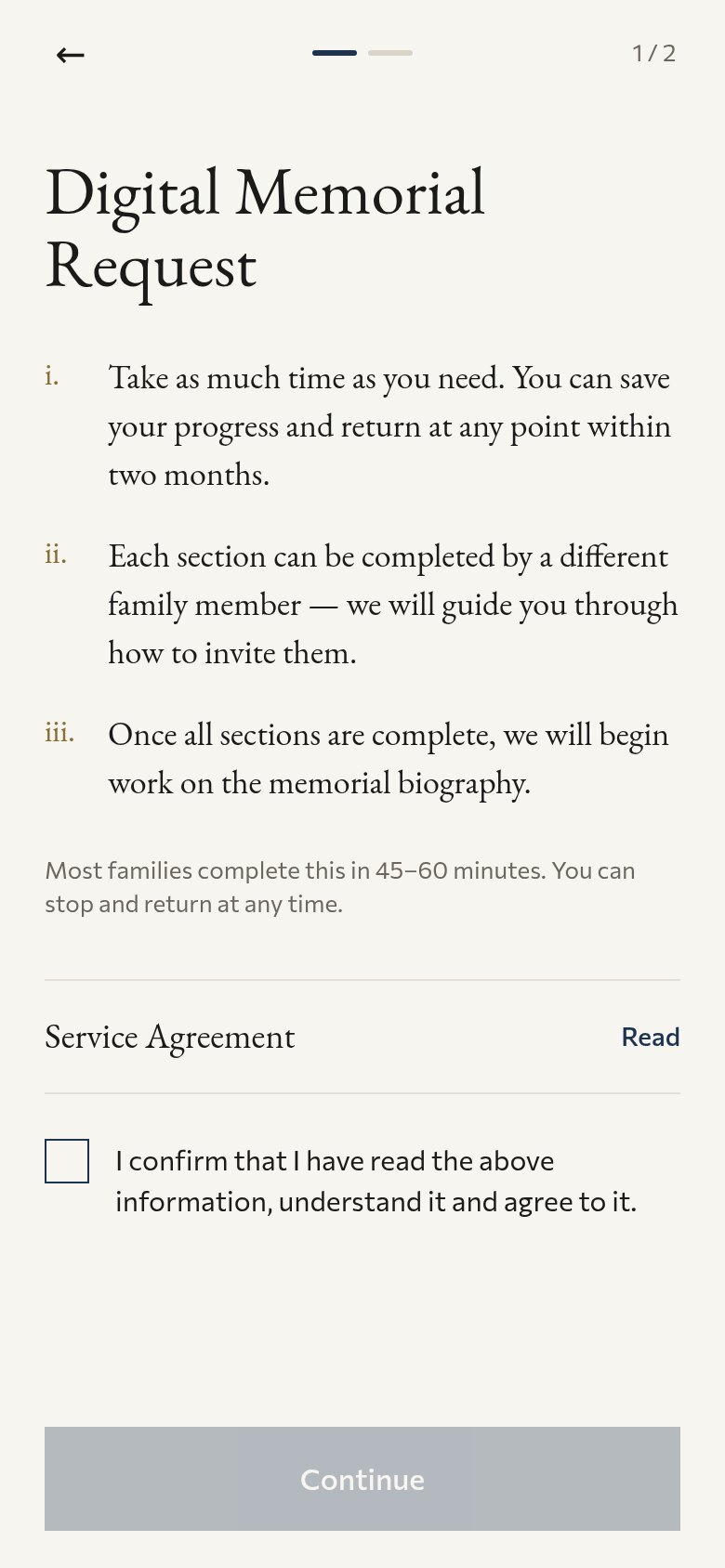
- Read and accept the Service Agreement (step 1 of 2), then the Memorial Guidelines (step 2 of 2). Each opens in full on the page before you tick the box.
- Enter the person's name.
- You arrive at the chapter list, where the questionnaire begins.
What am I agreeing to at the start?
The Service Agreement explains what the Stinmnimi team will produce for you, how your information and photographs are handled, and what rights you keep over the material you provide. The Memorial Guidelines explain what to expect from the process. You can read both in full before you agree, and again later from the Account page.
Answering the questions
What are the chapters?
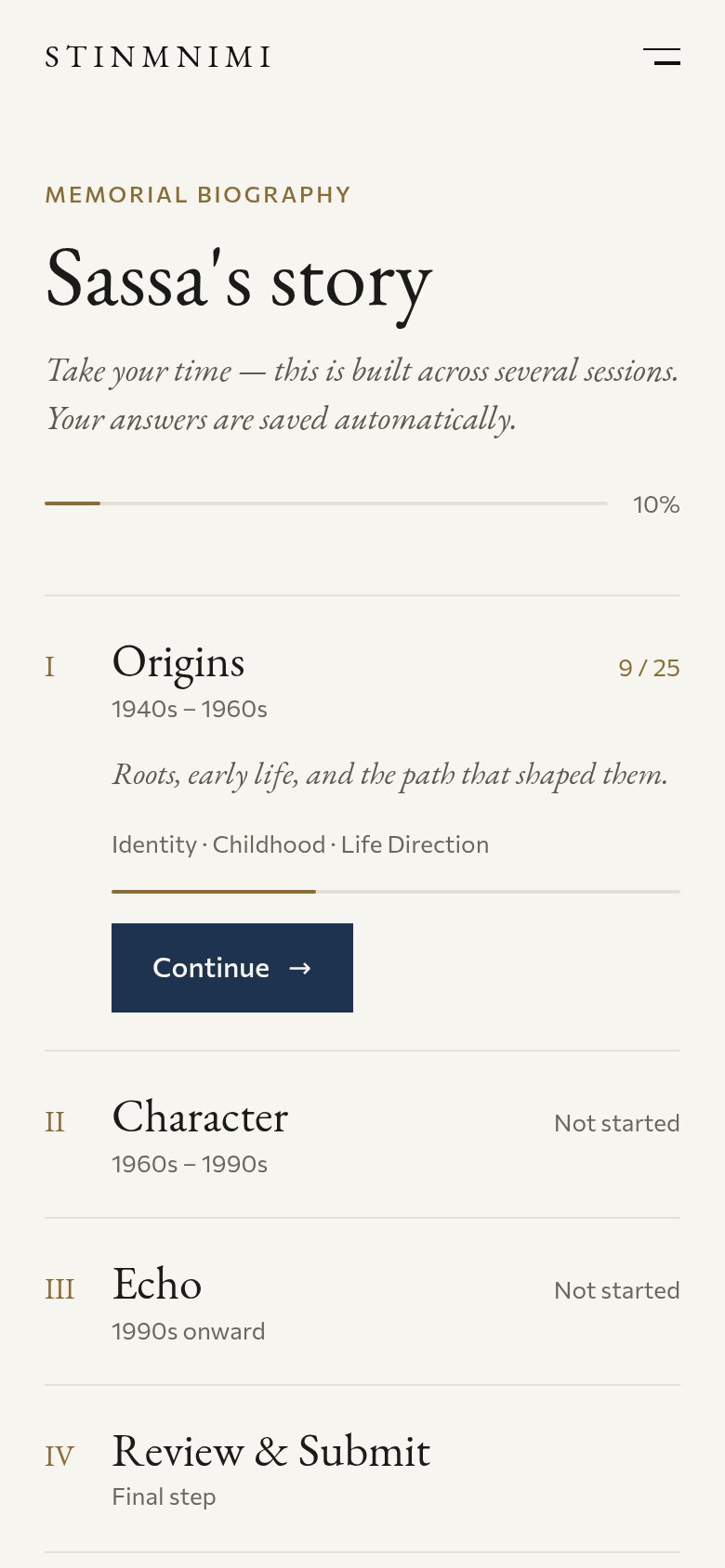
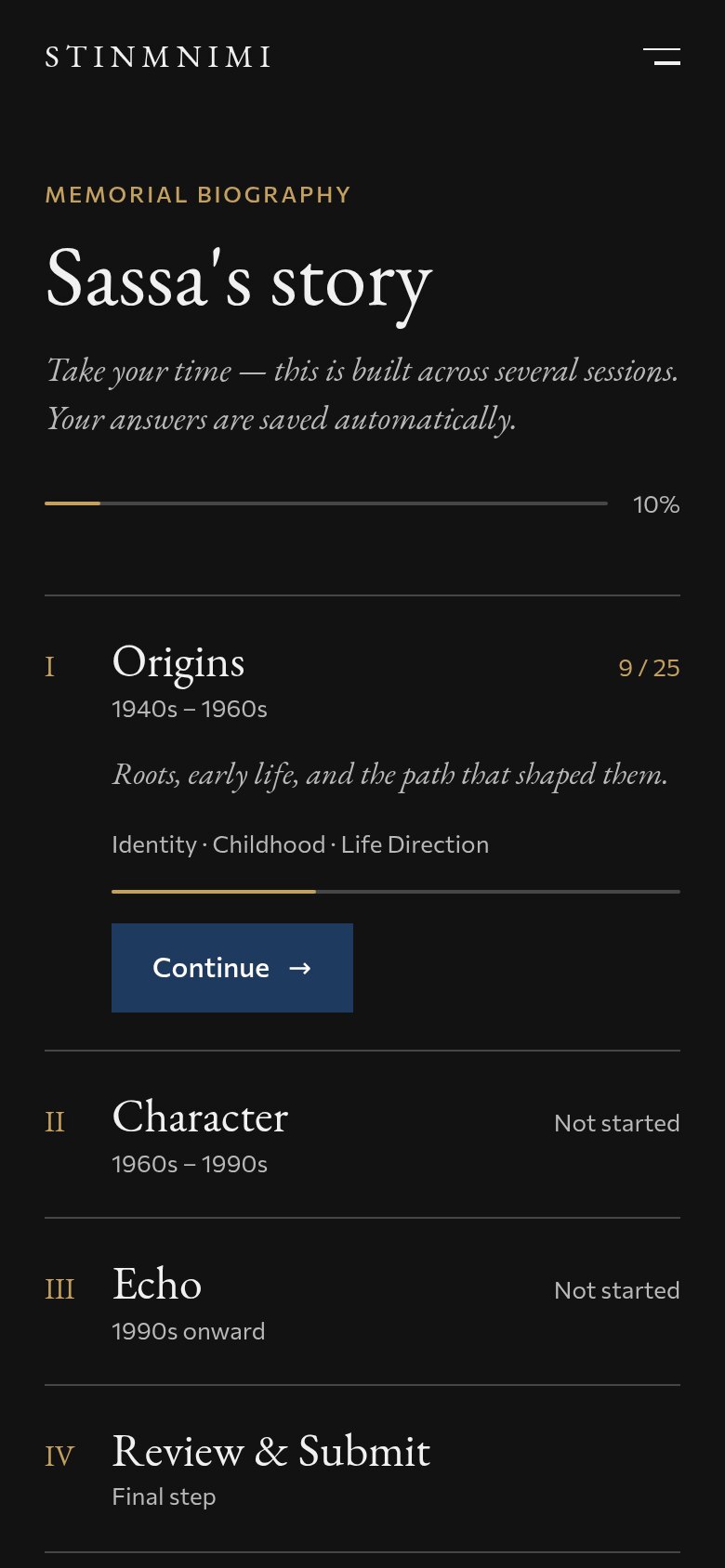
The questionnaire has three chapters and a final step for review.
- Origins covers early life: identity, childhood and the path that shaped the person.
- Character covers the middle decades: faith, relationships, work and everyday life. It is the longest chapter.
- Echo covers legacy and memory: what remains after the person's passing.
- Review and Submit is the last step.
You can do the chapters in any order and return to them at any time before you submit. Each chapter shows how many questions you have answered and a status: Not started, In progress or Complete. On a phone, finishing a chapter opens a short screen that introduces the next one. You can begin it straight away or continue later.
How do the questions work?
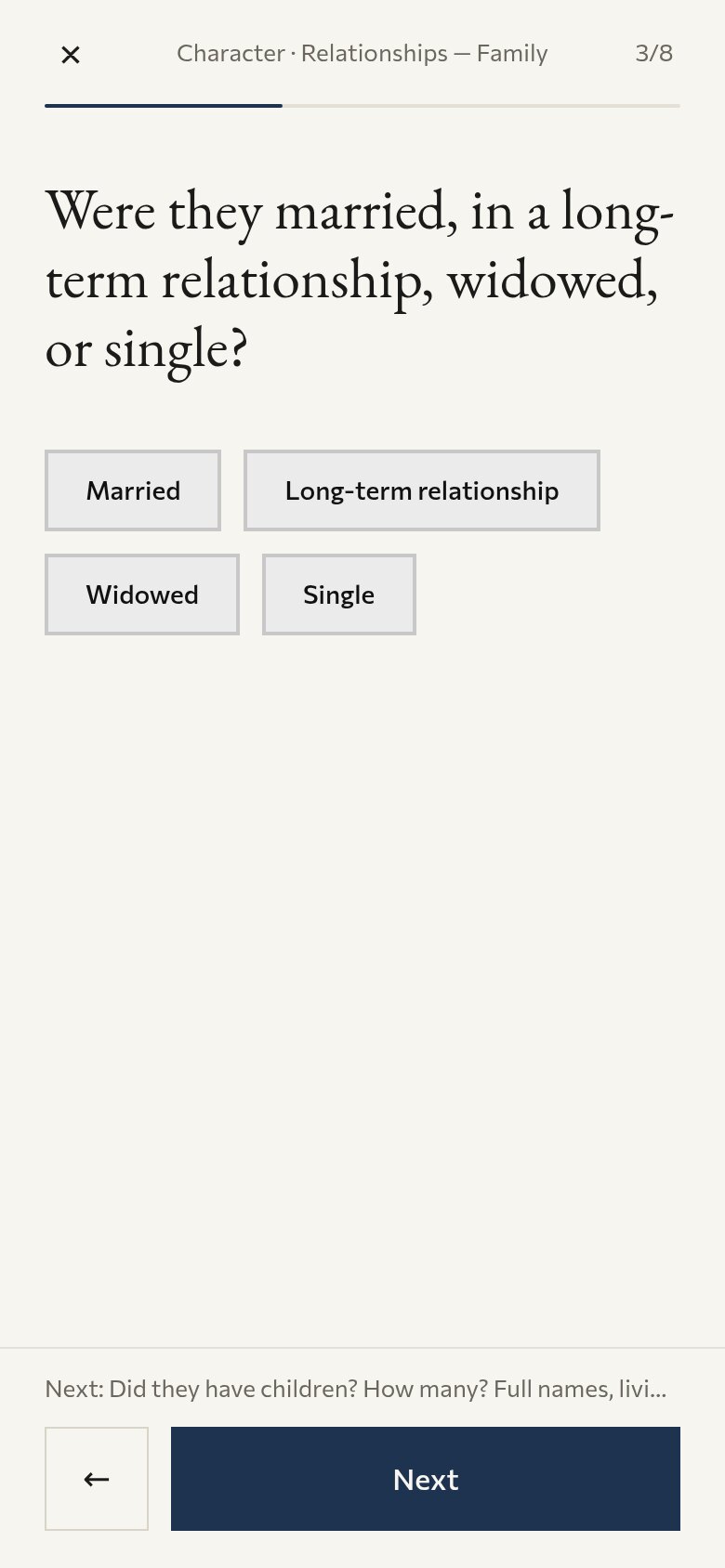
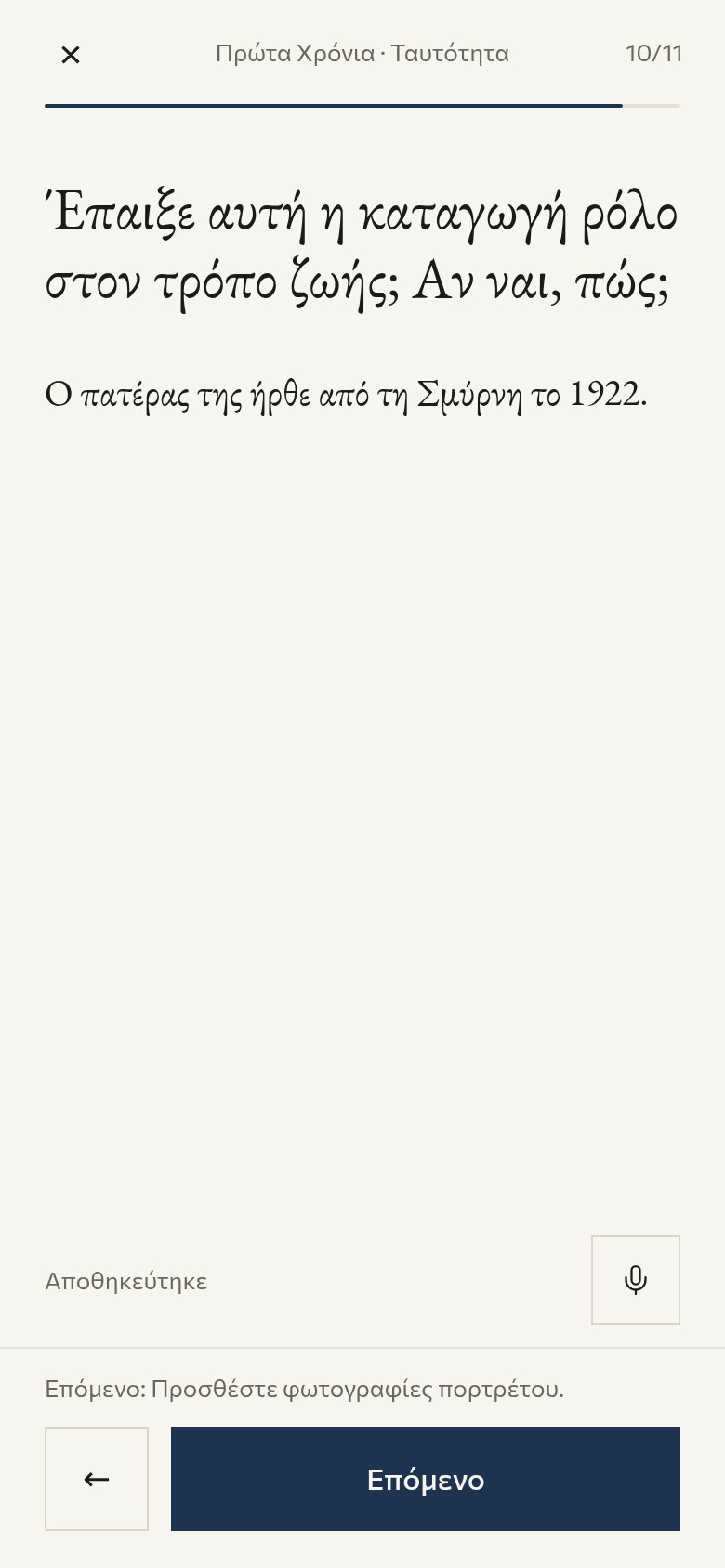
Questions appear one at a time. Use Next and the back arrow to move. At the top you see the chapter and section you are in, and a counter such as 10/11 shows where you are in that section. A line above the buttons tells you which question comes next.
Most questions ask for a written answer. Some ask you to choose from options, answer yes or no, enter a date, or fill in a small table. Under some questions a short line of help explains what kind of answer is most useful.
Are my answers saved?
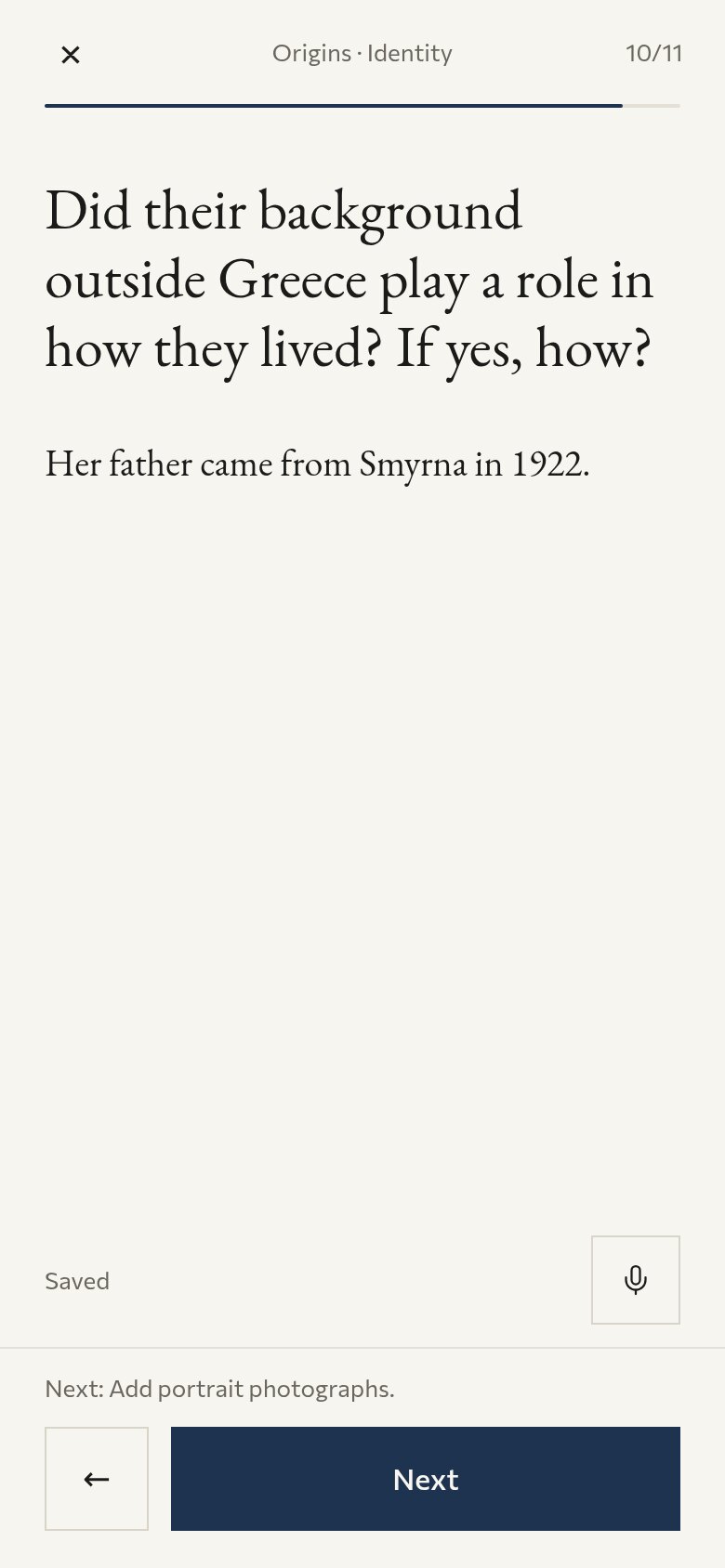
Yes, automatically. There is no separate save step. Under the answer field a note reads Saving and then Saved.
On a phone, the cross at the top left saves what you typed and takes you back to the chapter list. On a computer, use Save and continue later. When you come back, you continue from the same place.
Can I speak my answer instead of typing it?
Yes. Tap the microphone next to a text answer, speak, and tap it again to stop. Your recording is turned into text in the answer field, and you can edit it before you move on. This works in English and Greek.
What if I do not know an answer or a date?
Leave the question blank and continue, or give your best estimate. For dates, choose I don't know the exact date and enter an approximate one, for example a year.
Can I add photographs?
Yes. Photograph questions appear in the sections they belong to, such as portraits in Identity, childhood photographs, and pictures of adult life. Choose photographs from your phone or computer. Photographs are optional. A caption is optional too: if you leave it blank, the team writes one for you. All uploaded photographs go to the biography team together with your written answers.
Can other family members help?
Yes. On the Review screen you can invite family members or close friends by email and choose which sections each one answers. Each person receives a personal link to their own sections only. They cannot see your answers or each other's, and they cannot change other sections. Their answers appear on your Review screen for you to approve. Invitations stay open for a limited time and then expire, so it helps to ask people to answer soon after they receive the link.
Can I change an answer later?
Yes, until you submit. Open any chapter from the chapter list, or press Edit next to any section on the Review screen. You can return to your answers as many times as you like before you submit. After you submit, answers are locked. If you need a change after that, write to hello@lukeni.io.
Submitting and what comes next
How do I submit?
When you are happy with your answers, open Review and Submit, the last card on the chapter list. It shows every answer, including any from contributors, and lets you choose whether the memorial page is public or private. You then add your contact details and confirm. You receive a confirmation email, and the status of the memorial changes to Submitted.
Does submitting cost anything?
No. Nothing is charged while you build the memorial, and nothing is charged when you submit. There is one payment per memorial, at the end: after the team has finished the draft and you have read and approved it. Payment is processed by Stripe.
What happens after I submit?
The Stinmnimi team writes the memorial biography from your answers and photographs. When the draft is ready, you receive a private link by email to review it. The draft is divided into four parts: Opening, Early years, Life and character, and Remembrance. For each part you give a star rating from 1 to 5 and say whether it is accepted as it is, needs minor corrections, needs major changes, or does not fit. If parts need work, the team revises them, for up to two rounds. Once you have approved the biography and paid, the QR code and the downloadable files become available on the Publication page.
Should the memorial page be public or private?
You choose before you submit. Public means anyone with the link can view the page. Private means only the people you share the link with can see it, and the page is not indexed or searchable. You can change this yourself until you submit. After you submit, write to hello@lukeni.io and the team changes it.
Can I keep a copy of my answers?
Yes. Export a PDF from the Review screen. It shows the same information that is sent to the team.
Account, language and help
Which languages are available?
English and Greek. Change the language in Account, under Preferences. The screens change immediately, and the answers you have already given stay as they are.
Can I use dark mode?
Yes. A switch for light or dark appearance sits in the top bar on a phone and at the bottom of the side bar on a computer. It changes only how the app looks.
How do I delete my account?
Open Account and go to Danger Zone. You are asked to type DELETE to confirm. All memorials, answers, photographs and account data are then permanently deleted, and this cannot be undone. Export the PDF first if you want to keep a copy.
Where can I read the agreement and guidelines again?
On the Account page, under Service Agreement.
I need help, or something is not working.
In the app, open Account and choose Report an Issue, then describe the problem. If you would like help with the questionnaire itself, use Storytelling support on the chapter list: leave your name and a phone number or email address, and a member of the team contacts you. You can also write to hello@lukeni.io. Including the full name of the person the memorial is for helps the team find your record faster.